How to Burn SRT Subtitles into an MP4 (Free, No Upload)
By Bhavya · Updated September 26, 2026 · 5 min read
You have a video and a finished SRT file, maybe from a translator, a transcription service or YouTube, and you want the subtitles permanently on the picture so they show on every platform. This guide walks through burning an SRT into an MP4 in your browser, styling it, and fixing the problems people hit most often.
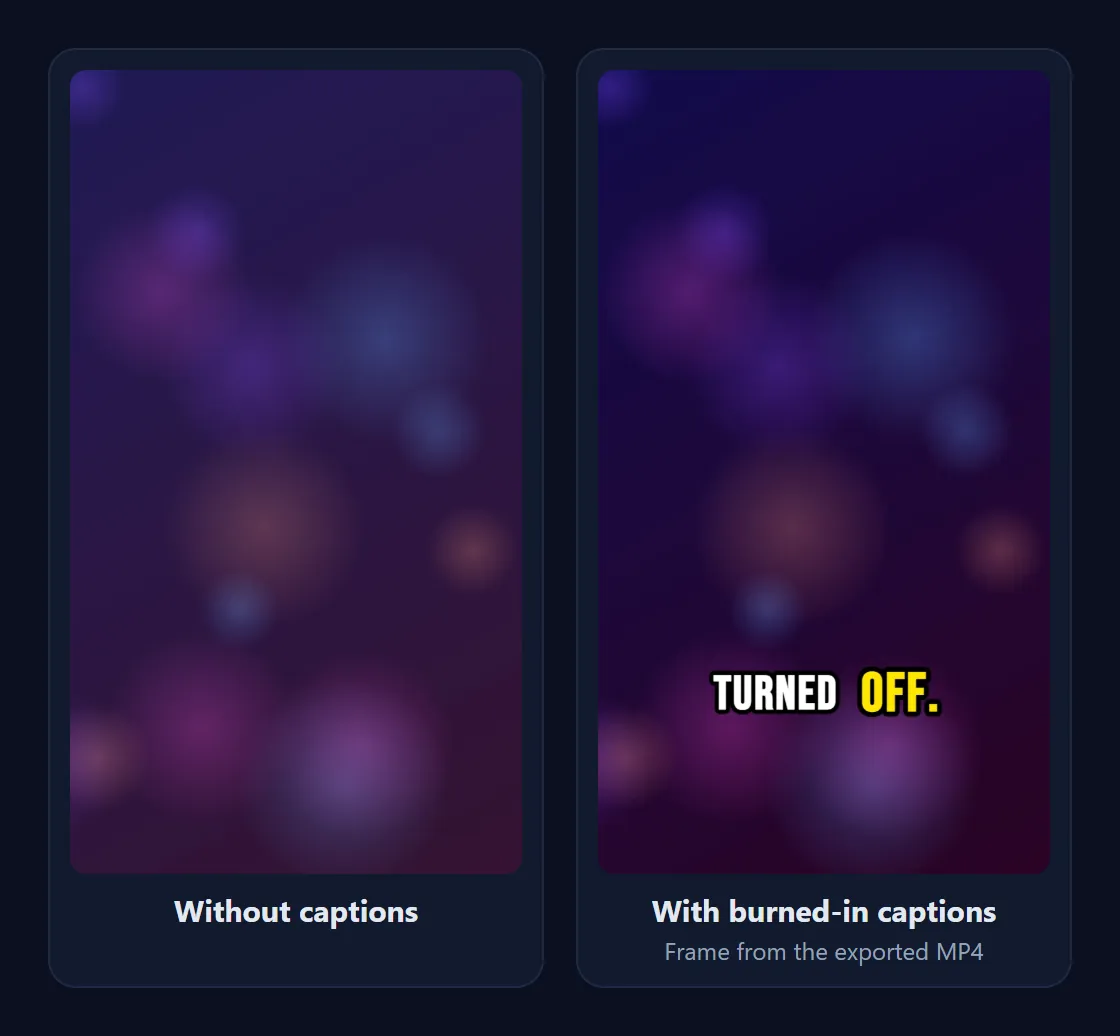
Burned-in vs soft subtitles
An SRT file on its own is a soft subtitle track: a plain-text list of lines and timestamps that a player can show or hide. YouTube, Vimeo and most video editors accept it, but Instagram Reels and TikTok do not let you attach one, and messaging apps ignore it completely.
Burning in (also called hardcoding, or open captions) draws the text onto every video frame. The subtitles can't be switched off, but they look exactly the same everywhere the video is played. For short-form social video that is usually what you want. Open vs closed captions explains the trade-offs in more detail.
What you need
- The video: MP4, MOV, MKV or WebM, up to 250 MB and 10 minutes. MP4 with H.264 video works in every browser.
- The subtitle file:
.srtor.vtt, saved as UTF-8 text. Most tools already export UTF-8. - A desktop browser: Chrome or Edge give you an MP4 export. Other browsers export WebM (see the export section below).
Step by step
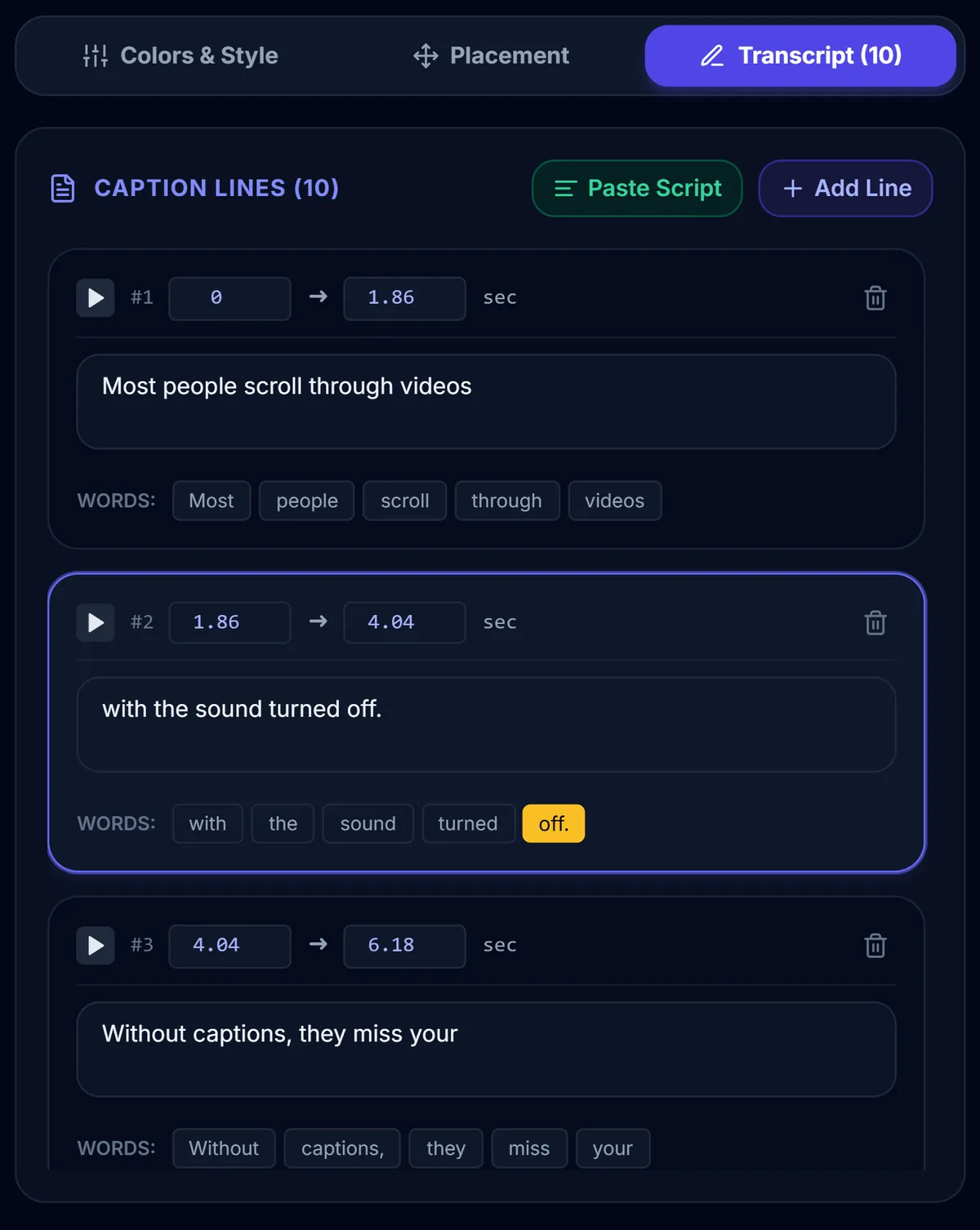
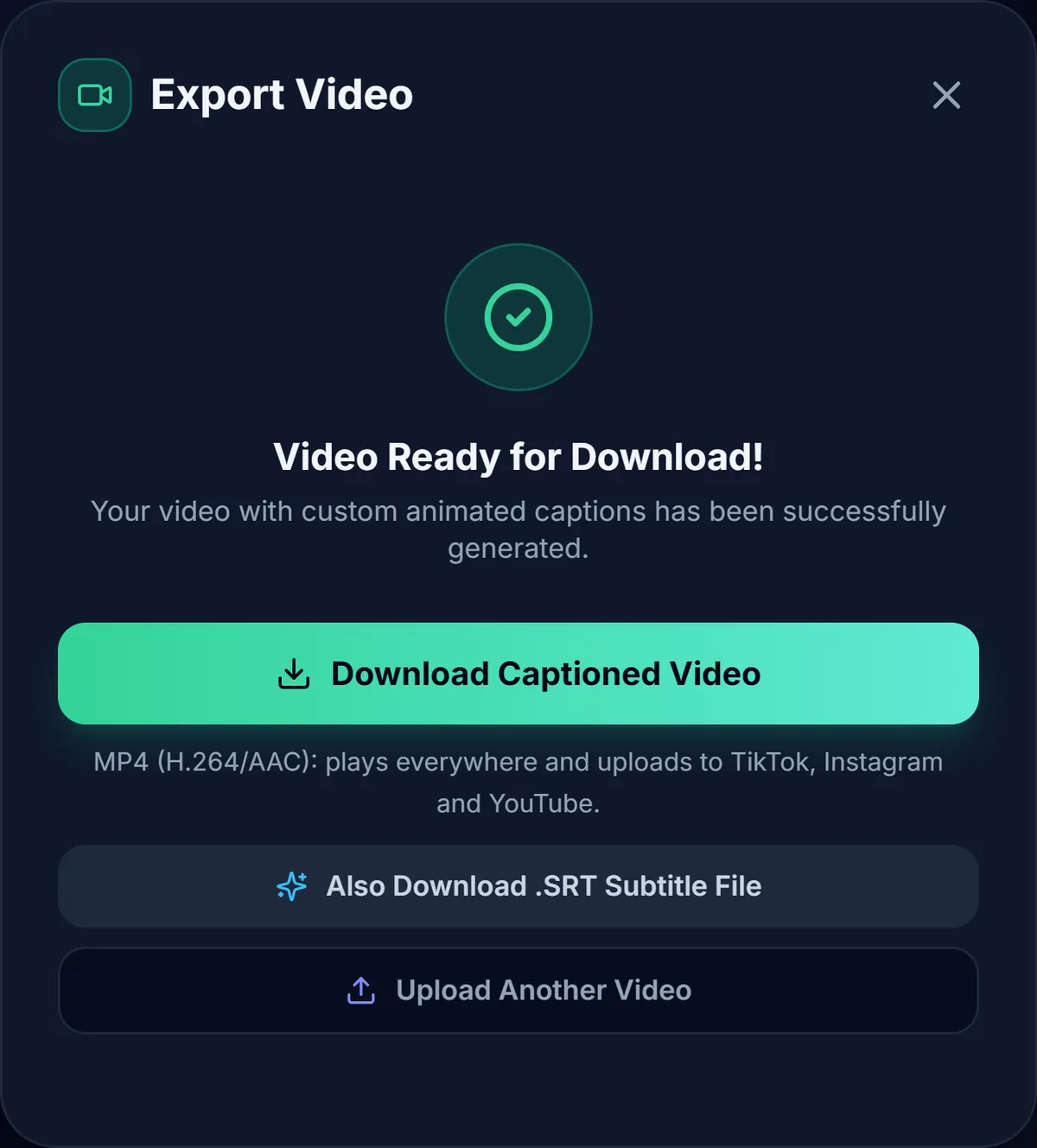
- Open CapMagic Studio and click Select Video File. The video opens in your browser; it is not uploaded anywhere.
- CapMagic starts automatic captions straight away. Because you already have subtitles, click Cancel on the progress bar.
- Click Import SRT in the top bar and choose your file. Each subtitle block becomes a caption line in the Transcript tab, with its start and end time.
- Press play and read along. If a word is wrong, edit it in the line; if a line appears too early or too late, change its start or end time.
- Choose a look in Colors & Style. For ordinary subtitles, Minimal Dark or a white font with a black outline and no animation reads like classic subtitles; for social video, try TikTok Viral or Reels Karaoke.
- Click Export Video. When the dialog says Video Ready for Download!, click Download Captioned Video.
00:00:01,860 --> 00:00:04,040 and at least one line of text, separated by blank lines.How timing and word highlighting work with an SRT
An SRT file only says when each line starts and ends. The word-by-word effects in CapMagic need a time for every word, so when you import a file the app spreads each line's words across that line's time, giving longer words a little more time than short ones. The whole line always stays exactly where your SRT put it.
Here is the start of an SRT file exported from CapMagic Studio, as an example of the format it imports:
1
00:00:00,000 --> 00:00:01,860
Most people scroll through videos

2
00:00:01,860 --> 00:00:04,040
with the sound turned off.
If you need the highlight to land exactly on each spoken word, generate the captions with Auto Captions instead (English speech), which times every word from the audio. If you just want classic subtitles, choose Color Change Only as the animation and the same highlight colour as the text colour, and the per-word timing no longer matters.
What the exported file looks like
- Chrome and Edge: an MP4 with H.264 video and AAC audio, which uploads to TikTok, Instagram, YouTube and LinkedIn and plays everywhere. The picture keeps your video's original resolution.
- Firefox and Safari: a WebM file. It plays in modern browsers and on YouTube, but some apps and phones reject it, so use Chrome or Edge when you need MP4.
- The SRT stays available: the export dialog also offers Also Download .SRT Subtitle File with any edits you made, which is handy for YouTube's closed captions.
Troubleshooting
- "No captions were found in this file": the file isn't valid SRT/VTT, or it's a different format (such as ASS or SUB). Convert it to SRT first, or check the blank lines between blocks.
- Some lines were skipped: CapMagic drops lines that start after the video ends and shortens lines that run past the end. This usually means the SRT was made for a longer cut of the video.
- Strange characters instead of accents: the file isn't UTF-8. Re-save it as UTF-8 in your text editor and import it again.
- Hindi text shows boxes: choose Poppins as the font; it's the one font in the list with Devanagari letters.
- Subtitles are out of sync by the same amount throughout: the SRT was timed against a version with a different intro. Adjust the start and end times of the lines, starting from the first one.
- Long lines wrap onto three rows: lower the font size or pick a smaller Display Chunk Size so fewer words show at once.
Frequently asked questions
Is burning subtitles into a video free?
Yes. CapMagic Studio is free, needs no account and adds no watermark.
Is my video uploaded to a server?
No. The video, the SRT and the export all stay in your browser. Only the page itself (and, if you use Auto Captions, the speech model) is downloaded.
Can I burn a VTT file instead of an SRT?
Yes. Import SRT accepts both .srt and .vtt files.
Will the video lose quality?
The video is re-encoded once to draw the captions, at its original resolution. For social media uploads the difference is not noticeable.
Can I burn subtitles in a language other than English?
Yes. Automatic captions are English-only, but an imported SRT can be in any language. For Hindi, use the Poppins font.
Related tool
Burn Subtitles into Video
Import an SRT or VTT file, style it and export an MP4 with the subtitles burned in.
Ready to caption your video?
Free, in your browser, and your video never leaves your device.
Open CapMagic Studio →